
Recording WhatsApp and Instagram Video Calls with Audio Using AZ Recorder
In the realm of mobile content creation and digital archiving, recording Voice over IP (VoIP) interactions—specifically on platforms like WhatsApp and Instagram—presents unique technical challenges. Unlike standard screen capture, recording a video call requires the concurrent processing of bidirectional audio streams (uplink and downlink) alongside high-resolution video rendering.
For Android users, the operating system’s security protocols regarding concurrent microphone access often hinder native recording solutions. AZ Recorder circumvents these limitations through advanced audio routing and flexible source selection. This guide serves as a definitive technical manual for utilizing AZ Recorder to produce professional-grade archives of your video communications, ensuring synchronization between video frames and high-bitrate audio.

How to How to edit videos in AZ Screen Recorder ?(Built-in Editor Guide)
1. Optimal Configuration for VoIP Capture
Before initiating a recording session, it is imperative to configure the encoding parameters within AZ Recorder. Video calls are dynamic; they depend heavily on network bandwidth. Therefore, your recording settings must balance quality with processing overhead to prevent frame drops or audio desynchronization.
1.1 Resolution and Bitrate Settings
For optimal clarity during video calls, manual configuration is superior to “Auto” settings.
-
Resolution: Set this to match your device’s native display output, typically 1920×1080 (1080p). Upscaling beyond native resolution wastes processing power, while downscaling results in loss of text legibility within the app interface.
-
Bitrate: Unlike high-motion gaming which requires 12 Mbps+, video calls contain relatively static backgrounds. A bitrate of 4 Mbps to 6 Mbps is sufficient. This reduces file size without compromising the visual fidelity of the webcam feed.
-
Frame Rate (FPS): Video calls generally transmit at 24 to 30 FPS. Recording at 60 FPS is redundant and forces the encoder to duplicate frames. Lock your recording FPS to 30 FPS to match the source material.
1.2 The Audio Source Conundrum
The most critical setting is the Audio Source. Android’s architecture handles audio focus strictly.
-
Microphone: This captures sound from your device’s microphone. It will record your voice clearly but will capture the caller’s voice via the phone’s speaker. This is the most reliable method for universal compatibility but requires a quiet environment.
-
Internal Audio: Available on Android 10 and above, this captures the raw system sound. However, strictly speaking, some VoIP apps (like WhatsApp) take “exclusive control” of the audio stream, potentially muting the internal recording.
-
Hybrid Approach: AZ Recorder allows for “Internal Audio” selection, but for two-way conversations, the recommended setting is often Microphone with the volume turned up, unless your specific device supports multi-stream audio capture.
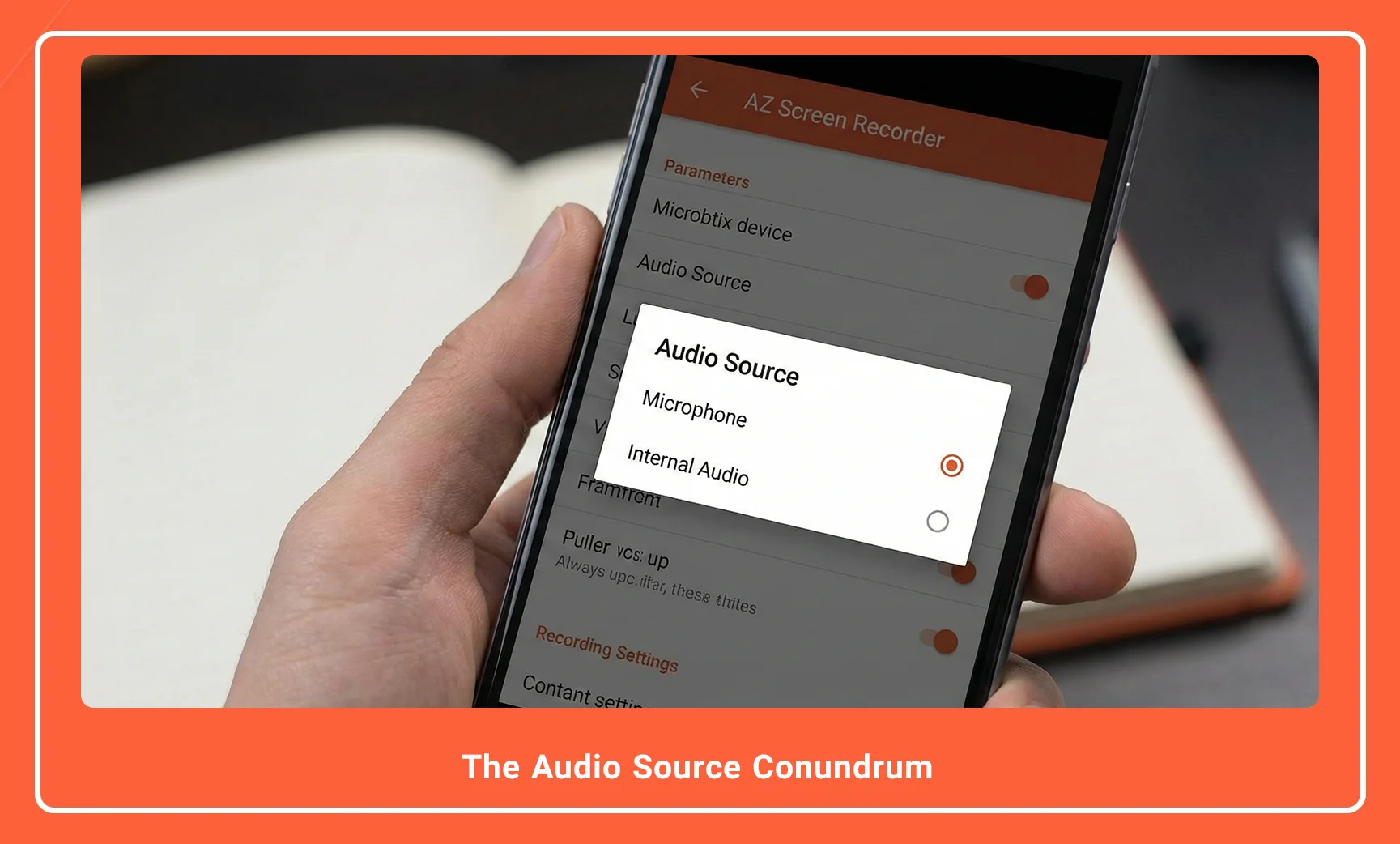
Description: A split-screen screenshot showing the AZ Recorder “Resolution” menu set to 1080p and the “Audio Source” menu with “Microphone” highlighted.
Alt Text: AZ Recorder configuration menu showing 1080p resolution and Microphone audio source selection for video calls.
2. Step-by-Step: Recording WhatsApp Video Calls
WhatsApp utilizes the opus codec for audio and typically VP9 or H.264 for video. To capture this stream effectively, follow this workflow to ensure the overlay does not interfere with the call interface.
Download AZ Recorder for iOS 📱 Your Gateway to Professional Content Creation
2.1 Preparation Phase
-
Launch AZ Recorder.
-
Navigate to Settings (Gear Icon).
-
Ensure Audio Source is set to Microphone (recommended for two-way audio) or Internal Audio (if your specific ROM supports concurrent capture).
-
Enable the Magic Button or Floating Window. This allows for immediate control without pulling down the notification shade, which can obscure the video feed.
2.2 Execution
-
Open WhatsApp and locate the contact you intend to call.
-
Tap the AZ Recorder floating icon and select the Record (Red Circle) button.
-
A 3-second countdown will initiate. Use this time to tap the Video Call button in WhatsApp.
-
Once the call connects, ensure your speakerphone volume is set to approximately 70-80%. This prevents distortion (clipping) while ensuring the microphone picks up the caller’s audio from the speaker.
2.3 Termination
-
End the WhatsApp call first.
-
Immediately tap the AZ Recorder floating stop button.
-
Verify the integrity of the file in the gallery.
Note on Audio Ducking: If you receive a system notification during the recording, Android may “duck” (lower) the volume of the call. It is advisable to enable “Do Not Disturb” mode prior to recording.
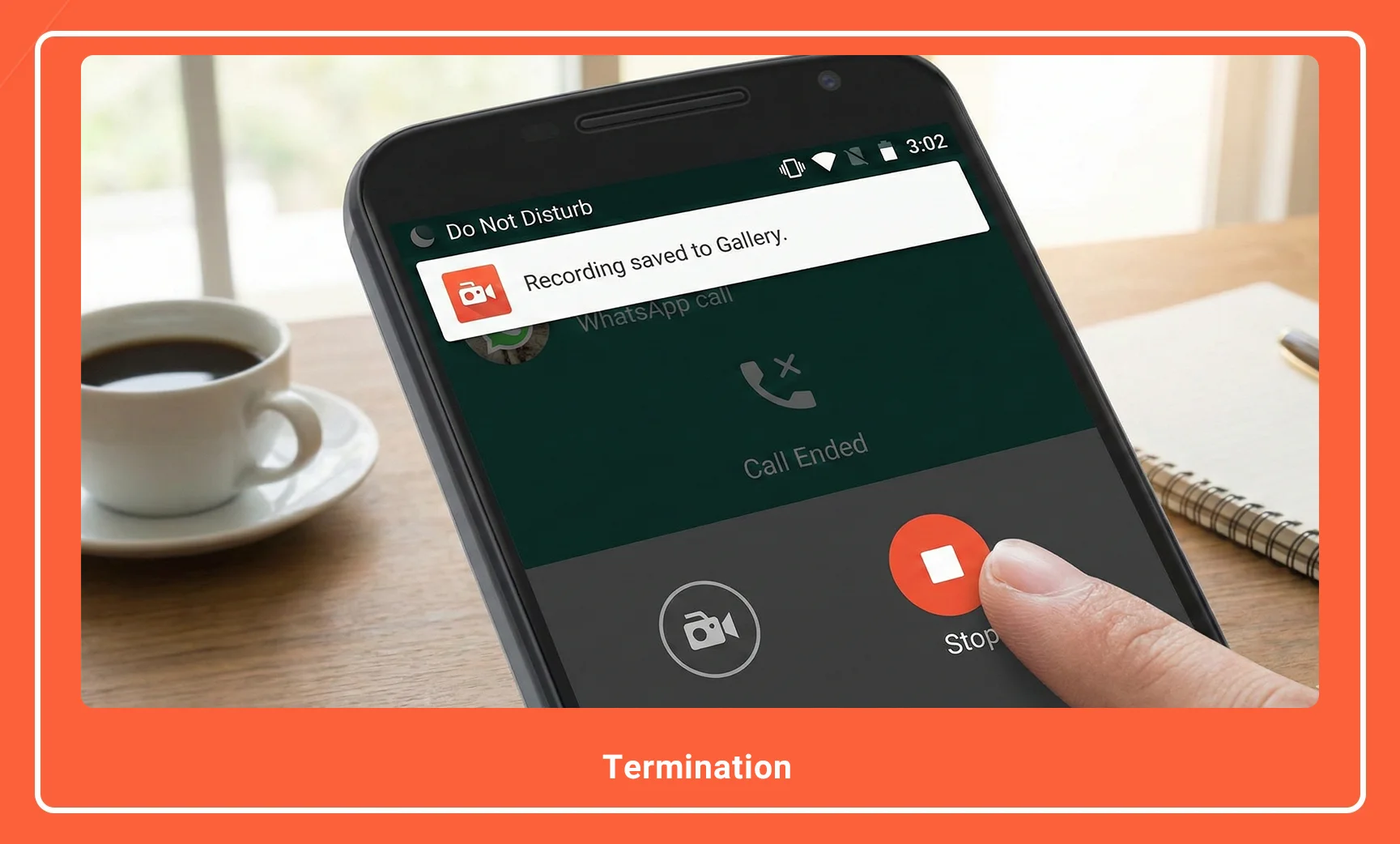
-
Description: An illustration showing a smartphone screen with a WhatsApp video call in progress, with the AZ Recorder floating widget visibly active in the corner.
-
Alt Text: WhatsApp video call interface with AZ Recorder floating widget recording the session.
3. Step-by-Step: Recording Instagram Video Chats
Instagram’s architecture differs slightly, often consuming more RAM due to filters and real-time effects. This necessitates strict resource management during recording.
3.1 Resource Management
Before recording an Instagram chat, clear background processes. Running AZ Recorder and Instagram simultaneously requires significant memory. If your device has limited RAM (under 4GB), lower the recording resolution to 720p.
3.2 The Recording Workflow
-
Launch AZ Recorder and verify the Orientation setting is set to Auto. Instagram calls can switch between portrait and landscape; locking orientation can result in skewed footage.
-
Open the Instagram Direct Message (DM) thread.
-
Start the recording via the AZ Overlay.
-
Initiate the video chat.
-
Critical Audio Step: Because Instagram media volume is separate from ringtone volume, physically adjust the volume rocker after the call connects to ensure the audio level is sufficient for the microphone to capture the downlink audio.
| Feature | WhatsApp Recording | Instagram Recording |
| Primary Codec | Optimized for low bandwidth | Optimized for visual quality/filters |
| Orientation | Usually Portrait | Frequent switching (Portrait/Landscape) |
| RAM Usage | Moderate | High (due to AR effects) |
| Recommended Bitrate | 4-5 Mbps | 6-8 Mbps |
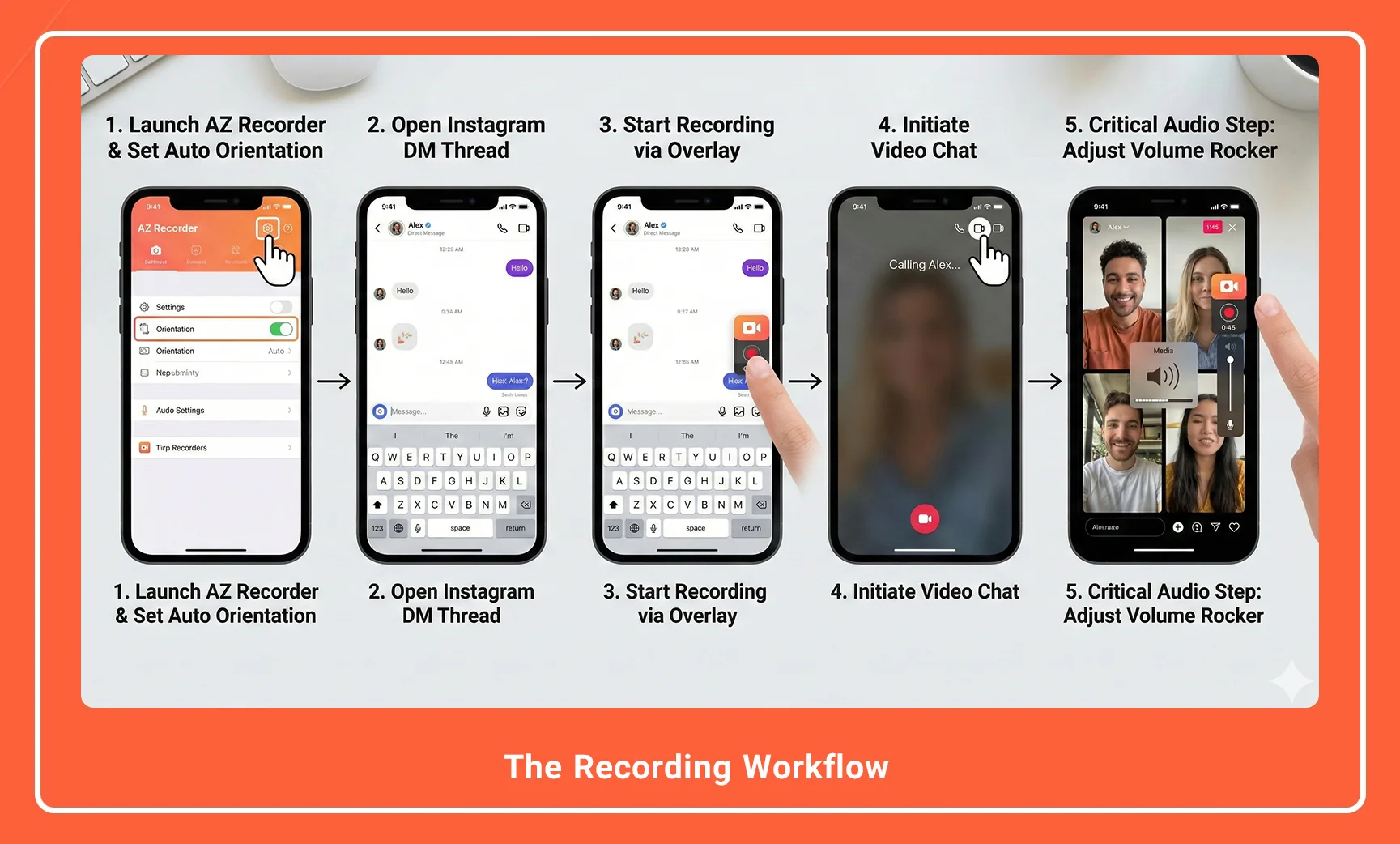
-
Description: A technical comparison table visualized as a graphic, highlighting the “Orientation” setting in AZ Recorder set to “Auto” alongside an Instagram video chat interface.
-
Alt Text: Configuring AZ Recorder orientation settings for Instagram video chats.
4. Advanced Technical Troubleshooting
Professional content creators may encounter specific artifacts or audio issues. Below is a technical breakdown of common anomalies and their rectifications.
4.1 The “Silent Caller” Issue (Android 10/11/12)
The Problem: You record the call, but on playback, you only hear your own voice. The caller is silent.
The Technical Cause: Android’s security policy prevents two applications from accessing the microphone simultaneously. If WhatsApp claims the mic for the call, the screen recorder cannot access it.
The Solution:
-
Use the Microphone source in AZ Recorder settings.
-
Use Speakerphone mode on the VoIP app.
-
If this fails, your device manufacturer may have strictly implemented the API block. The workaround is to use an external audio mixer or cast the screen to a PC and record via desktop software, though AZ Recorder updates frequently to patch these specific ROM limitations.
4.2 Audio/Video Desynchronization
The Problem: The audio lags behind the video movement.
The Technical Cause: Variable Frame Rate (VFR). If the device CPU throttles due to heat, it drops frames, but audio recording remains constant (time-based).
The Solution:
-
In AZ Recorder, look for Fix Green Screen/Encoder settings (if available in your version).
-
Reduce Resolution to reduce CPU load.
-
Avoid using HEVC (H.265) compression if your device is older, as the decoding/encoding overhead is significantly higher than H.264.
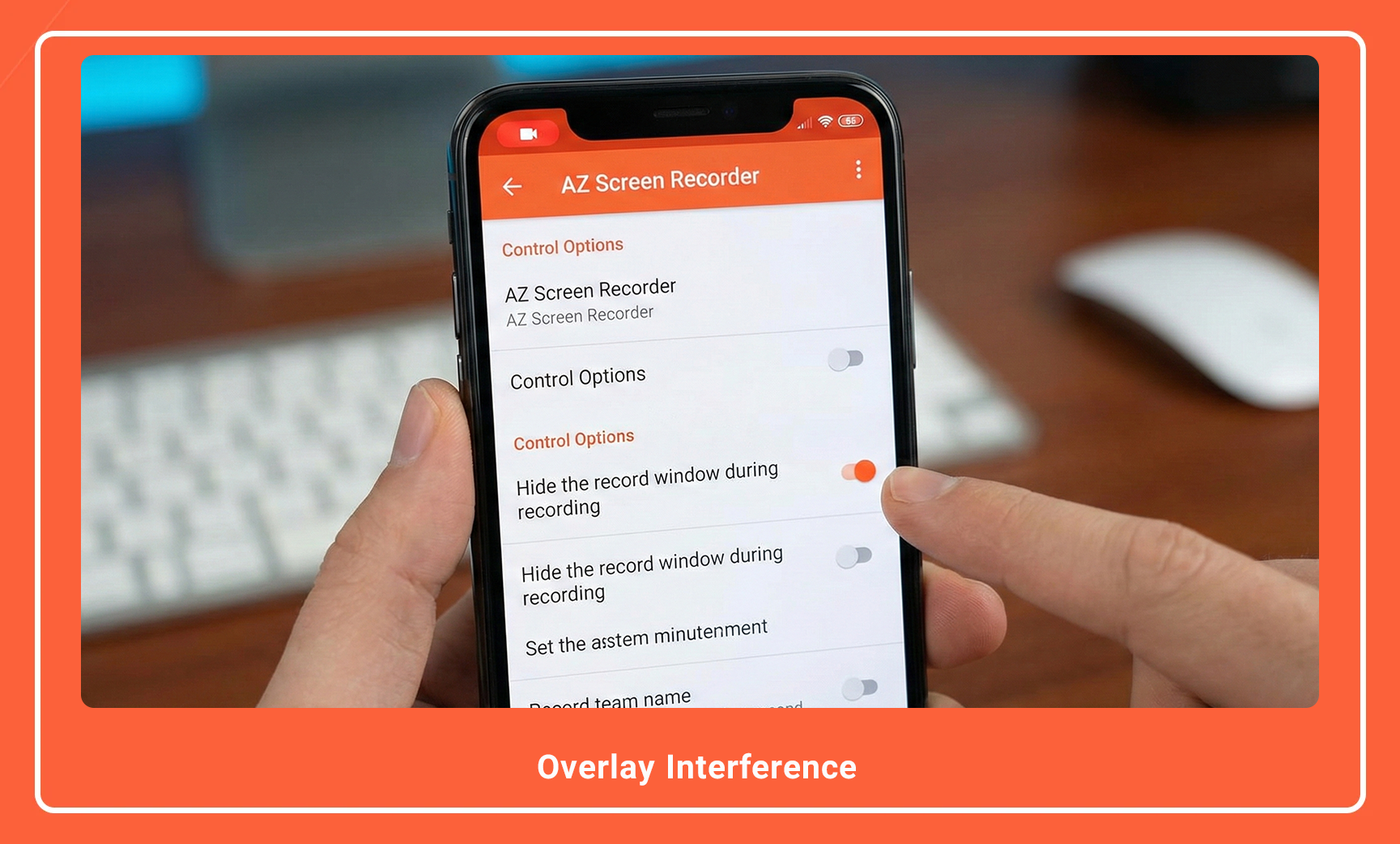
4.3 Overlay Interference
If the AZ Recorder controls appear in your final video, go to Settings > Control Options and enable “Hide the record window during recording.” You can then stop the recording by using the notification bar or by shaking the device (if “Stop on Shake” is enabled).
-
Description: A troubleshooting diagram showing the flow of audio: Source (Voice) -> Device Mic -> VoIP App AND Recorder. Visualizing the “blocking” mechanism in Android OS.
-
Alt Text: Diagram illustrating Android audio focus conflict between VoIP apps and screen recorders.
Conclusion
Successfully recording WhatsApp and Instagram video calls requires more than simply pressing a button; it requires an understanding of Android’s audio architecture and resource management. AZ Recorder provides the necessary toolkit—bitrate control, audio source selection, and frame rate locking—to bridge the gap between OS limitations and user requirements.
By utilizing the Microphone audio source with speakerphone enabled, and matching your resolution settings to the content type, you can archive crystal-clear conversations for podcasts, tutorials, or personal records.
Take the next step: Open your AZ Recorder settings now, set your Audio Source to “Microphone,” and perform a 30-second test call to calibrate your volume levels before your next important meeting.
Frequently Asked Questions
1. Why can’t I hear the other person in my WhatsApp recording?
This is typically due to Android’s privacy policy preventing two apps from using the microphone simultaneously. To fix this, set AZ Recorder’s audio source to “Microphone” and ensure your call is on speakerphone at a high volume.
2. Should I use Internal Audio or Microphone settings for video calls?
For most video calls (WhatsApp/Instagram), you must use the Microphone setting. “Internal Audio” is often disabled by the OS during voice calls to prevent echo loops, meaning it will record silence.
3. What is the best bitrate for recording a face-to-face video call?
A bitrate of 4 Mbps to 6 Mbps is ideal. Video calls do not have the fast motion of gameplay, so higher bitrates will only increase file size without improving visual quality.
Navigate to AZ Recorder settings and enable “Hide the record window during recording.” You can then stop the capture by pulling down the notification shade or using the “Stop on Shake” feature.
5. Does AZ Recorder support recording calls on Bluetooth headphones?
Generally, no. When Bluetooth is active, the audio stream is routed directly to the headset, bypassing the phone’s microphone which AZ Recorder relies on for capturing the caller’s voice in “Microphone” mode.

AZ Screen Recorder is one of the most popular and powerful free and professional applications for screen recording on Android devices. Due to its ease of use, high output quality, and a rich set of features, this application has become a standard tool for gamers, educational content creators, and general users.
I am not very technical, but this guide made it so simple for me! I finally recorded a video call with my grandson who lives abroad. The steps were clear, and the audio came out perfectly. Thank you for this helpful tutorial!
Hi Elena! We are so happy to hear that you could capture those precious moments with your grandson. Making technology accessible is our main goal. Enjoy your recordings!
Great article. I have a quick technical question: If I am using Bluetooth headphones during the WhatsApp call, will AZ Recorder still capture the internal audio from the other person? Or do I need to switch the audio source settings?
Hello Kaito, that’s a great question. Usually, if you use Bluetooth headphones, we recommend setting the audio source to “Microphone” to ensure both sides are recorded, as Android restricts internal audio routing to Bluetooth sometimes. Check out our guide on [Common Audio Issues and Fixes] for more details!