
Convert Video to GIF with AZ Recorder: Technical Guide & Tutorial
In the landscape of modern digital content creation, the Graphics Interchange Format (GIF) remains a dominant standard for conveying short, looping visual information without the overhead of full video codecs or audio streams. While originally introduced by CompuServe in 1987 utilizing Lempel-Ziv-Welch (LZW) lossless data compression, the format has evolved into a critical tool for mobile gamers, software educators, and social media strategists.
For professionals utilizing AZ Screen Recorder, the ability to convert high-definition screen captures directly into GIF format eliminates the need for third-party desktop rendering software. This capability streamlines the workflow from “Capture” to “content deployment,” ensuring that latency is minimized and content relevance is maximized.
This technical guide provides a deep dive into utilizing AZ Screen Recorder’s built-in editing suite to transform standard MP4 screen recordings into optimized, engaging GIFs suitable for memes, instructional snippets, and bug reporting.

The Technical Architecture of Mobile GIF Creation
Before engaging in the conversion process, it is imperative to understand the technical constraints and parameters of the GIF format compared to standard video containers like MP4 or MKV.
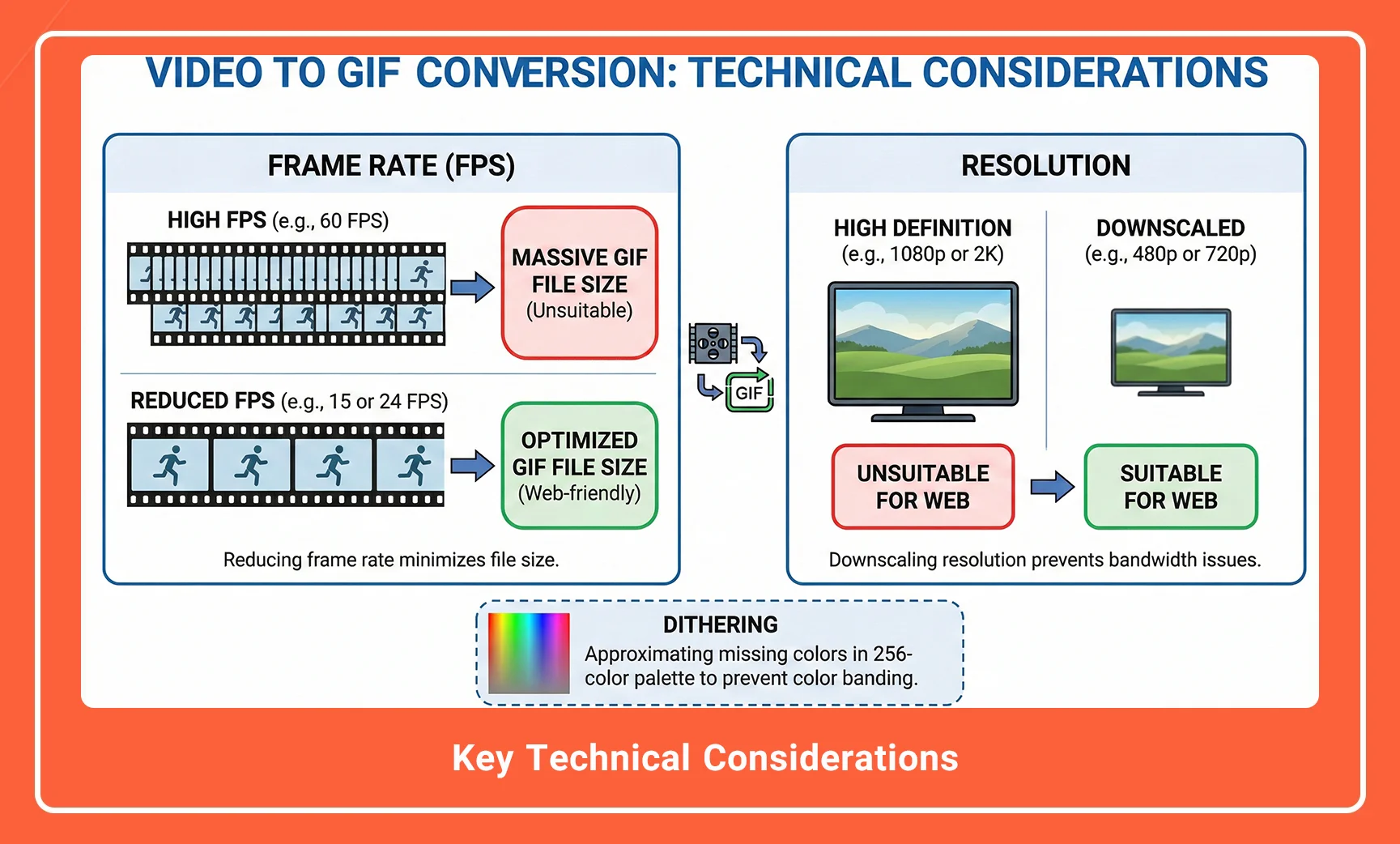
Unlike video files which rely on complex inter-frame compression (such as H.264 or HEVC) and capable of displaying millions of colors, GIFs are limited to an 8-bit palette. This means a maximum of 256 colors are available for any given frame. When you convert a high-fidelity mobile game recording—often rendering at 60 FPS (Frames Per Second) with 32-bit color depth—down to a GIF, the software must perform color quantization and frame decimation.
Key Technical Considerations:
-
Frame Rate (FPS): High FPS video (60fps) results in massive GIF file sizes. Reducing the frame rate to 15 or 24 FPS is often necessary for web optimization.
-
Resolution: 1080p or 2K recordings are unsuitable for direct GIF conversion due to bandwidth constraints. Downscaling is required.
-
Dithering: The process of approximating missing colors in the 256-color palette to prevent color banding.
Description: A side-by-side technical comparison infographic. The left side shows a “Raw Video” file icon labeled “MP4, H.264, 60FPS, 100MB”. An arrow points to the right side showing a “Processed GIF” icon labeled “GIF, 256 Colors, 15FPS, 5MB”, illustrating the compression and conversion pipeline.
Alt Text: Technical comparison of MP4 video compression versus GIF 8-bit color quantization and file size reduction.
AZ Recorder vs. Third-Party Converters: A Technical Comparison
Many users export their screen recordings to PC software like Adobe Premiere or use web-based converters. However, AZ Screen Recorder offers a distinct advantage: Native Signal Processing.
By processing the file on the same device where it was captured, you avoid compression artifacts that occur when uploading to cloud services (which often re-encode video before conversion).
| Feature | AZ Screen Recorder (Native) | Web-Based Converters | Desktop Software (e.g., Photoshop) |
| Processing Location | Local (Device CPU/GPU) | Cloud Server | Local (PC CPU) |
| Signal Loss | Minimal (Direct access to source) | High (Upload compression) | None (Dependent on transfer method) |
| Workflow Efficiency | Immediate | Slow (Requires Upload/Download) | Moderate (Requires Transfer) |
| Trimming Precision | Frame-accurate | Often restricted | Frame-accurate |
| Cost | Free / Integrated | Freemium / Ad-supported | Expensive License |
Step-by-Step Guide: Converting Video to GIF
To generate professional-grade GIFs or memes, precise execution of the conversion process is required. Follow this technical workflow to ensure optimal file size and visual clarity.
Phase 1: The Capture
Ensure your source material is recorded correctly.
-
Open AZ Screen Recorder.
-
Access Settings > Resolution. For intended GIF output, a recording resolution of 720p (1280×720) is recommended over 1080p to reduce processing load during conversion.
-
Set Frame Rate to 30 FPS. While 60 FPS is smoother for video, it is redundant for GIFs and doubles the file size.
-
Execute the screen recording of the gameplay or tutorial segment.
Phase 2: The Conversion Workflow
Once the footage is captured, proceed to the post-production suite within the app.
-
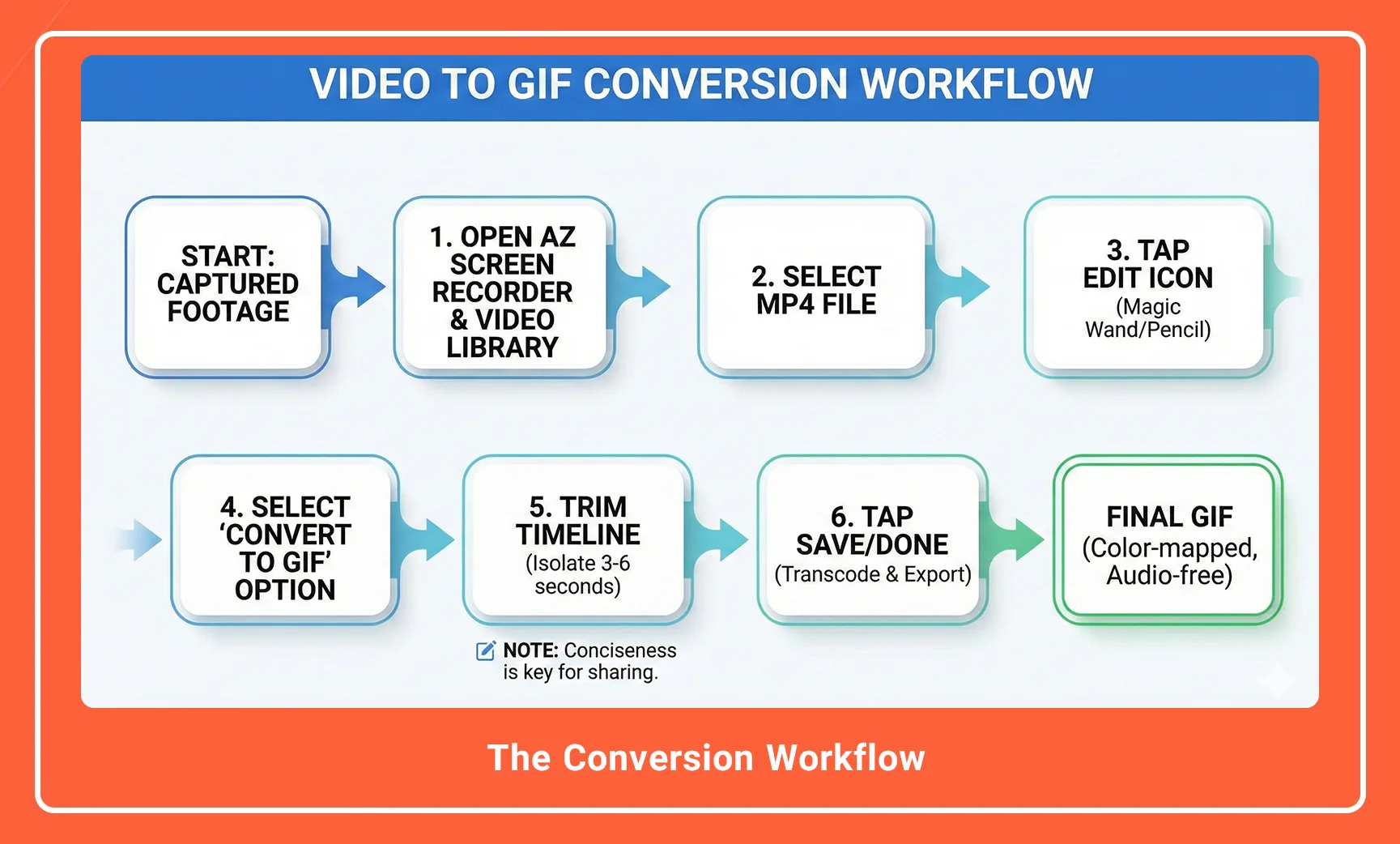
Launch the Library: Open the AZ Screen Recorder app and navigate to the Video Library tab where your recent captures are stored.
-
Select the File: Locate the specific MP4 file you wish to convert.
-
Access the Editor: Tap the “Edit” icon (usually represented by a magic wand or pencil symbol) next to the video file.
-
Select GIF Mode: In the editing toolbar, scroll until you locate the “Convert to GIF” or “GIF” option.
-
Trim the Timeline:
-
GIFs should be concise. Use the timeline sliders to isolate the exact moment of action (the “meme” or “instruction”).
-
Technical Note: Aim for a duration between 3 to 6 seconds. Anything longer than 10 seconds creates file sizes that are difficult to share on platforms like Discord or Slack.
-
-
Export: Tap Save/Done. The internal engine will transcode the selected video segment, mapping the color palette and discarding audio data.
Description: A screenshot of the AZ Screen Recorder editing interface. The user’s finger (indicated by a touch visualizer) is adjusting the timeline cursors to trim a video clip. The “GIF” button is highlighted or circled in the bottom toolbar.
Alt Text: Trimming the video timeline in AZ Screen Recorder editor to convert video to GIF on Android.
Advanced Optimization: Creating Engaging Memes
To transition from a simple screen recording to an “Engaging Meme,” one must apply creative layering. While the GIF format strips audio, the visual context must be instantly recognizable.
Text Overlays and Context
Memes rely on “top text/bottom text” conventions or immediate visual humor.
-
Before converting to GIF within AZ Recorder, you can utilize the “Add Text” feature in the video editor.
-
Font Selection: Choose high-contrast fonts. White text with a black outline is the industry standard for readability against variable video backgrounds.
-
Placement: Ensure text does not obscure the focal point of the gameplay or action.
How to How to edit videos in AZ Screen Recorder ?(Built-in Editor Guide)
Managing File Size and Bitrate
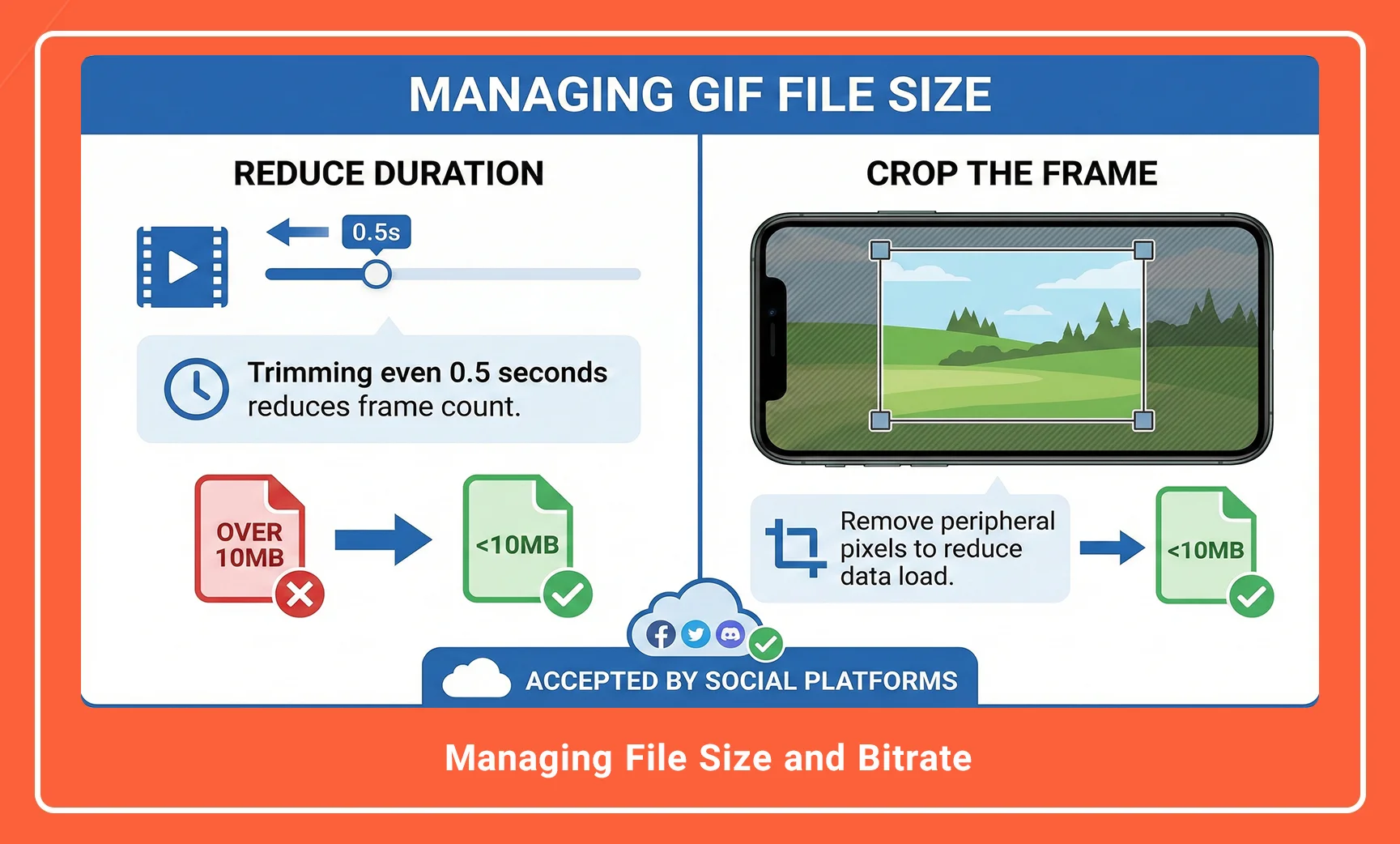
If your output GIF is too large (e.g., over 10MB), it may be rejected by social platforms.
-
Reduce Duration: Trimming even 0.5 seconds can significantly reduce the frame count.
-
Crop the Frame: If the action only happens in the center of the screen, use the Crop tool prior to GIF conversion to remove unnecessary peripheral pixels, reducing the data load.
Description: An illustration showing the “Crop” tool in action. The original 16:9 video is being cropped to a 1:1 square ratio, focusing on a character in a game, effectively demonstrating how to reduce pixel count for GIFs.
Alt Text: Using the crop tool in AZ Screen Recorder to optimize video framing before GIF conversion.
Best Practices for Professional GIF Production
To maintain authority as a content creator, adherence to quality standards is non-negotiable.
1. Lighting and Contrast
Because GIFs have a limited color palette (256 colors), scenes with low contrast or excessive darkness will result in “muddy” or “grainy” images. Ensure your in-game brightness is high before recording.
2. Motion Blur Management
Excessive camera movement in a First-Person Shooter (FPS) game causes significant artifacting in GIFs. The compression algorithm struggles to redraw pixels that change rapidly.
-
Technique: When recording for a GIF, move the in-game camera smoother and slower than you would during normal gameplay.
3. Loop Continuity
The most engaging GIFs appear to loop seamlessly.
-
Technique: Try to start and end the clip on a similar visual frame. For example, if your character is idle, start the clip there, perform the action, and end the clip when the character returns to the idle animation.
Conclusion
Converting video to GIF with AZ Screen Recorder is a powerful workflow that bridges the gap between high-performance mobile gaming and viral social content. By leveraging the native editing capabilities of the application, creators can produce optimized, lightweight, and compatible media assets without the friction of external software.
Whether you are documenting software bugs for developer review or creating high-engagement memes for social media, understanding the technical balance between frame rate, resolution, and duration is key to success.
Next Step: Open your AZ Screen Recorder gallery today, select your best highlight reel, and use the “Convert to GIF” feature to create your first optimized loop.
Frequently Asked Questions
1. Does converting video to GIF reduce the quality?
Yes. GIFs are limited to a 256-color palette, whereas standard video supports millions of colors. Some loss of color depth and sharpness is inherent to the technical format of a GIF.
2. Can I include audio in the GIF made by AZ Recorder?
No. By definition, the GIF format does not support audio streams. If you require sound, you must export the file as a short MP4 video instead.
3. What is the ideal length for a GIF?
For maximum compatibility and engagement, a duration of 3 to 6 seconds is ideal. GIFs longer than 10 seconds often result in file sizes that are too large for quick loading on mobile networks.
4. Why is my GIF file size so large?
Large file sizes are usually caused by high frame rates (60 FPS) or high resolutions (1080p). Try cropping the video or reducing the duration of the clip to lower the file size.
5. Can I edit the text on the GIF after it is saved?
No. Once the GIF is rendered and saved, the text and frames are “baked in” (rasterized). To make changes, you must edit the original video file again and re-export it as a new GIF

AZ Screen Recorder is one of the most popular and powerful free and professional applications for screen recording on Android devices. Due to its ease of use, high output quality, and a rich set of features, this application has become a standard tool for gamers, educational content creators, and general users.