
Master Live Streaming: AZ Screen Recorder YouTube & Facebook Guide
Mobile broadcasting has evolved from a niche hobby into a professional industry. For content creators, educators, and mobile gamers, the ability to broadcast high-fidelity gameplay or tutorials directly from a smartphone is essential. AZ Screen Recorder distinguishes itself not merely as a capture utility, but as a robust mobile encoder capable of handling RTMP (Real-Time Messaging Protocol) streams, high-bitrate encoding, and dual-audio processing.
This technical guide provides a deep dive into configuring AZ Screen Recorder for professional-grade live streaming on YouTube and Facebook. We will bypass generic advice and focus on the technical specifications—bitrates, resolution matching, and audio codecs—required to ensure your stream is stable and sharp.

Technical Prerequisites for Mobile Streaming
Before initiating a broadcast, your device and network environment must meet specific technical thresholds to prevent frame drops or buffering artifacts.
-
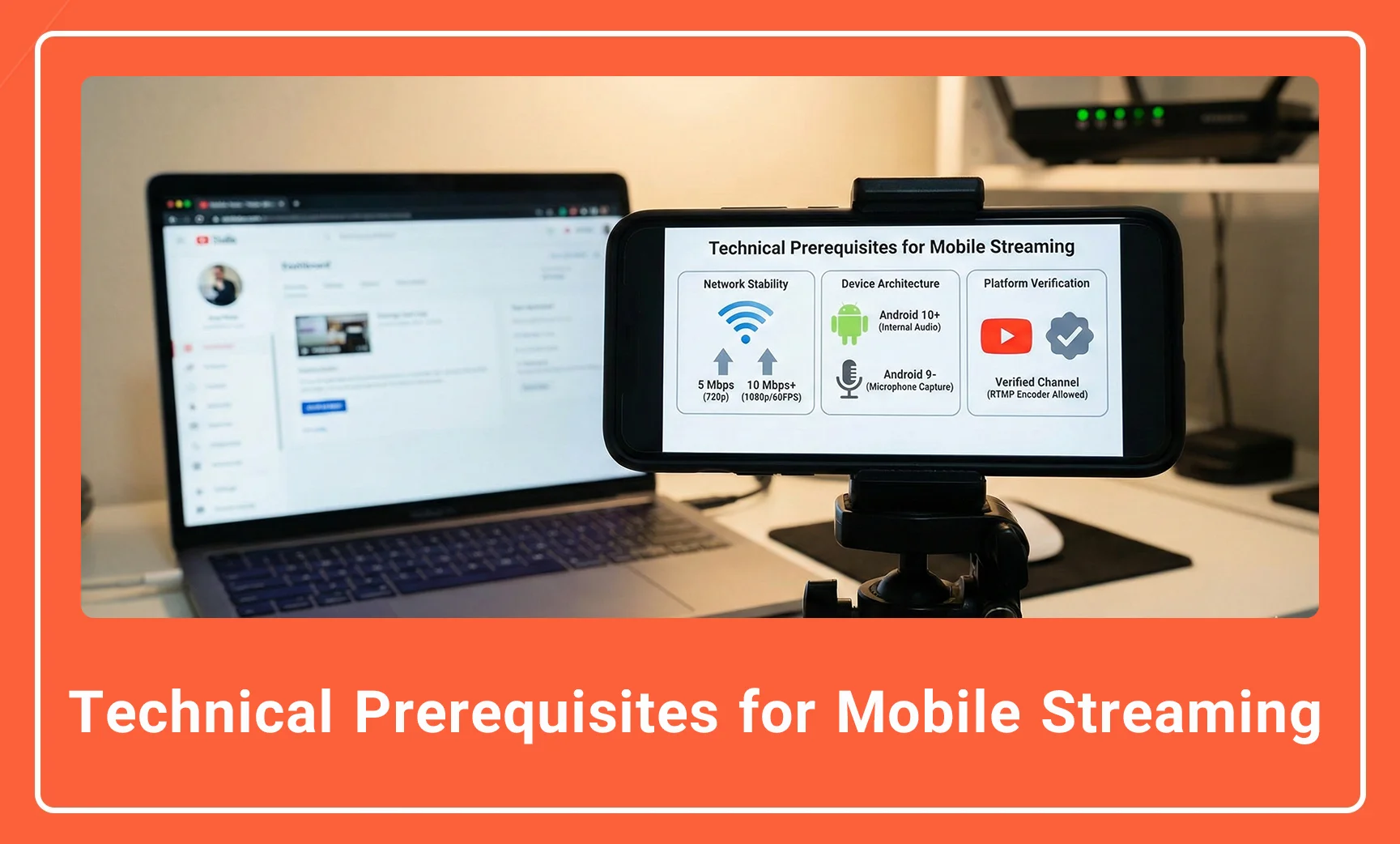
Network Stability: A minimum upload speed of 5 Mbps is required for 720p streaming, while 10 Mbps+ is recommended for 1080p/60FPS.
-
Device Architecture: Android 10 or higher is required to capture Internal Audio directly. Older versions (Android 9 and below) will be forced to use the microphone for audio capture, resulting in lower fidelity.
-
Platform Verification:
-
YouTube: Your channel must be verified to enable live streaming. Note that while the native YouTube app requires 1,000 subscribers for mobile streaming, AZ Screen Recorder acts as a third-party encoder, often allowing users with fewer subscribers to stream via RTMP credentials.
-
Description: A split illustrative graphic. On the left, a speed test app showing “Upload: 15 Mbps”. On the right, the Android “About Phone” settings screen highlighting “Android Version 12” to emphasize the prerequisites.
Alt Text: Internet upload speed test and Android version requirements for AZ Screen Recorder live streaming.
Configuring Video Bitrate and Resolution
The quality of your stream is dictated by the relationship between your Resolution, Frame Rate (FPS), and Bitrate. If these are not balanced, your stream will suffer from macro-blocking (pixelation) or high latency.
Use the table below to configure AZ Screen Recorder settings based on your available upload speed.
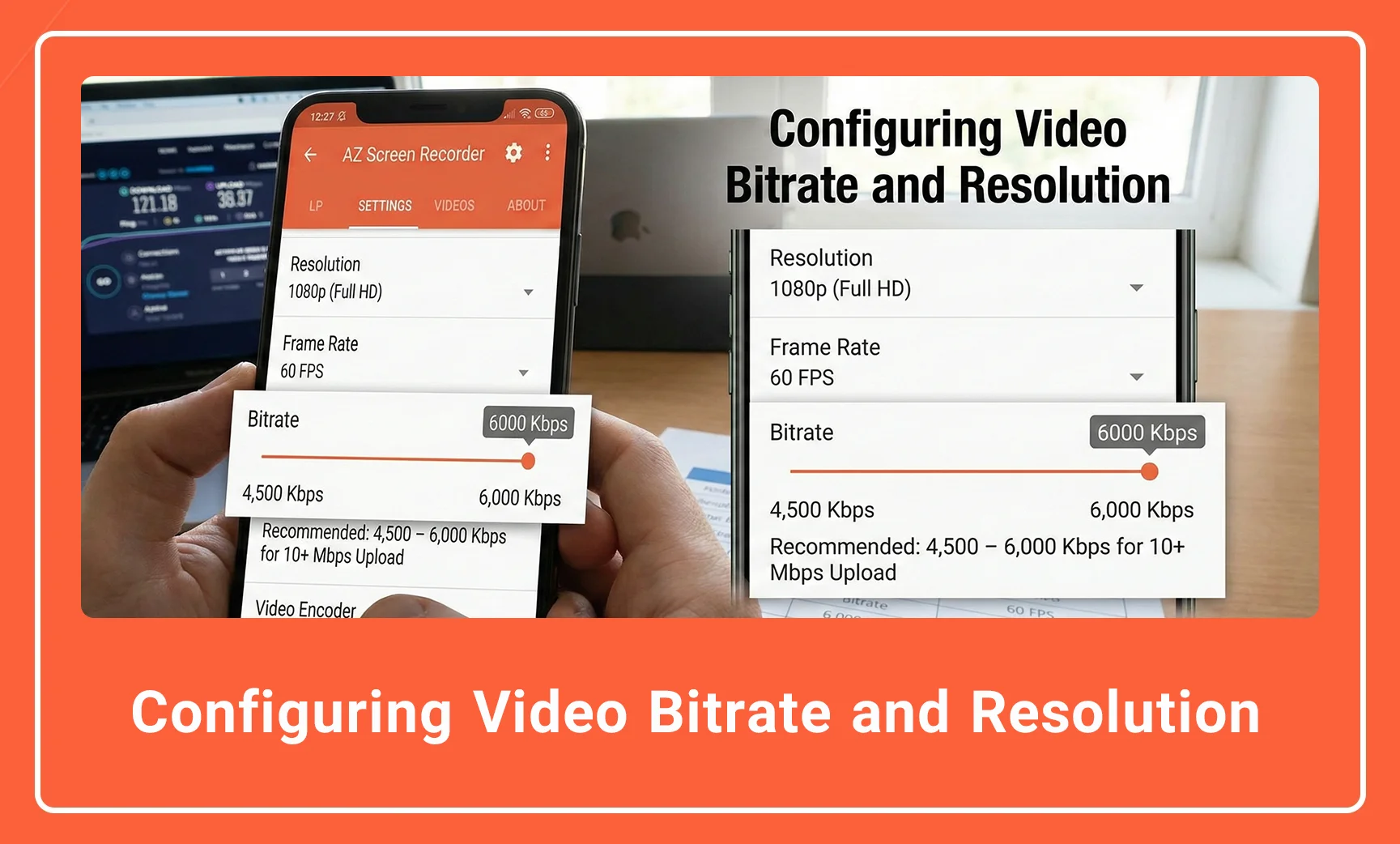
| Target Resolution | Frame Rate | Recommended Bitrate (Kbps) | Min. Upload Speed |
| 1080p (Full HD) | 60 FPS | 4,500 – 6,000 Kbps | 10+ Mbps |
| 1080p (Full HD) | 30 FPS | 3,000 – 4,500 Kbps | 6+ Mbps |
| 720p (HD) | 60 FPS | 2,500 – 4,000 Kbps | 5+ Mbps |
| 720p (HD) | 30 FPS | 1,500 – 2,500 Kbps | 3+ Mbps |
Technical Note: To adjust these, open AZ Screen Recorder > Settings (Gear Icon). Ensure the Video Encoder is set to H.264 (AVC) for maximum compatibility with YouTube and Facebook ingestion servers.
-
Description: A screenshot of the AZ Screen Recorder settings menu, specifically highlighting the “Resolution” dropdown set to 1920×1080 and the “Bitrate” slider set to ‘Auto’ or ‘5 Mbps’.
-
Alt Text: Configuring resolution and bitrate settings in AZ Screen Recorder for optimal streaming quality.
How to Live Stream on YouTube
Streaming to YouTube via AZ Screen Recorder utilizes the YouTube Data API to link your account seamlessly.
-
Launch the Interface: Open AZ Screen Recorder. Tap the Live button (marked by a camera icon) in the floating overlay.
-
Select Platform: Choose YouTube from the available options.
-
Account Authorization: You will be prompted to sign in with your Google Account. Grant the necessary permissions for the app to “Manage your YouTube account” (required to create the live event).
-
Event Metadata:
-
Title: Enter a keyword-rich title.
-
Description: Add your video description.
-
-
Privacy Settings: Set to Public for general viewing or Unlisted for testing.
-
Start Broadcasting: Tap Start Live. The app will initiate the handshake with YouTube’s servers.
Critical Audio Setting: Ensure the Audio Source is set to “Internal Audio” (if on Android 10+) to capture game sound without background noise. If you wish to speak over the game, enable the Microphone as well, but be aware that AZ Recorder mixes these tracks into a single stereo output.
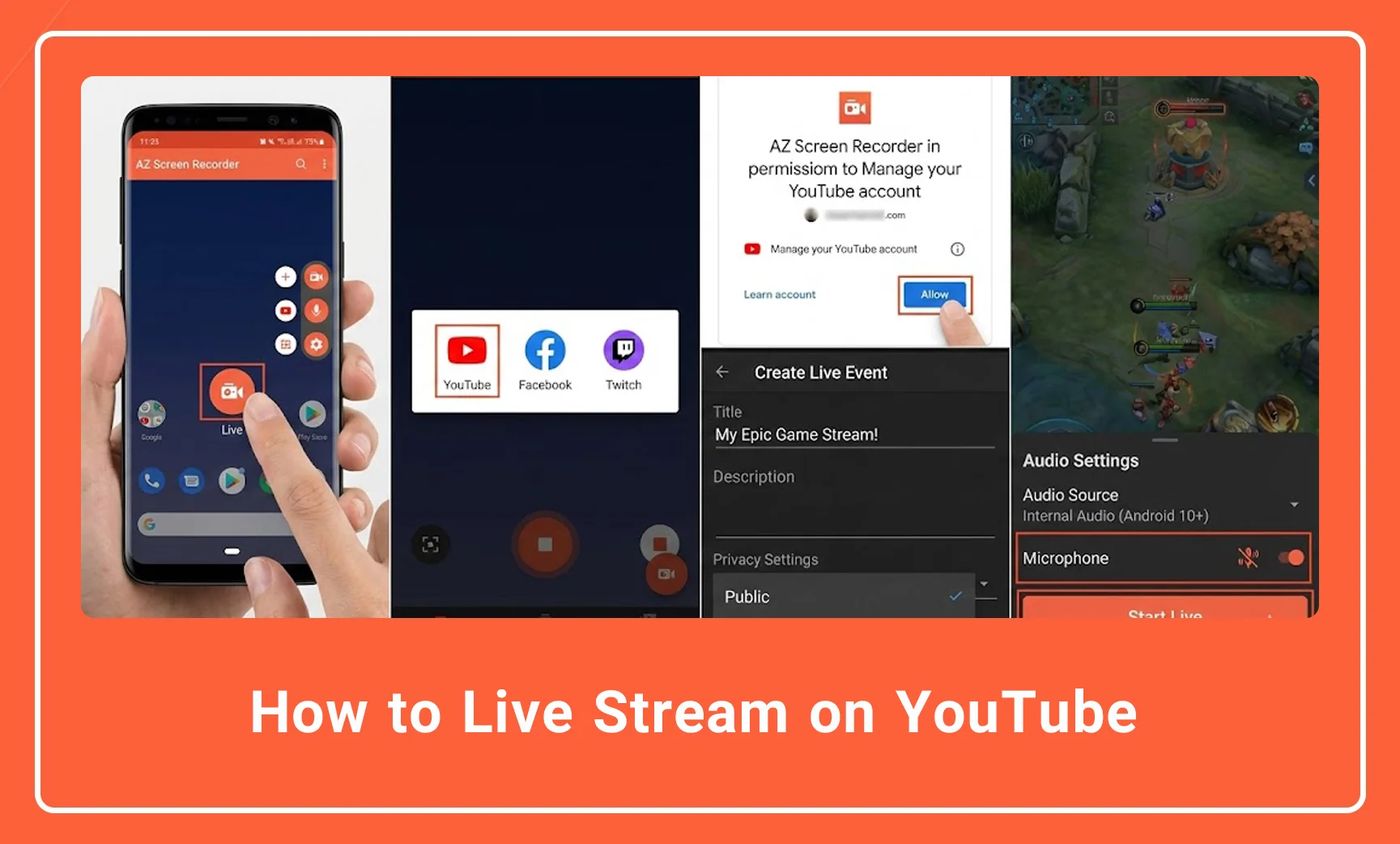
Description: The “Create Live Stream” setup screen within the AZ app showing the YouTube logo, a text field for the stream title, and the “Start” button.
Alt Text: Setting up a YouTube live stream title and description inside AZ Screen Recorder.
How to Live Stream on Facebook
Broadcasting to Facebook follows a similar protocol but requires attention to audience settings (Timeline vs. Page).
-
Initiate Live Mode: Tap the overlay menu and select Live.
-
Select Facebook: Tap the Facebook icon.
-
Permissions: Authorize AZ Screen Recorder to post to your timeline. You can choose to stream to:
-
Your Personal Timeline
-
A Page You Manage (Recommended for creators)
-
A Group
-
-
Add Caption: Facebook streams rely heavily on the caption/status update. Write a compelling hook here.
-
Go Live: Tap Start.
Pro Tip: Facebook often aggressively compresses streams. Even if you upload at 1080p, Facebook may downscale to 720p depending on server load and your account status (Level Up creators get priority for 1080p).
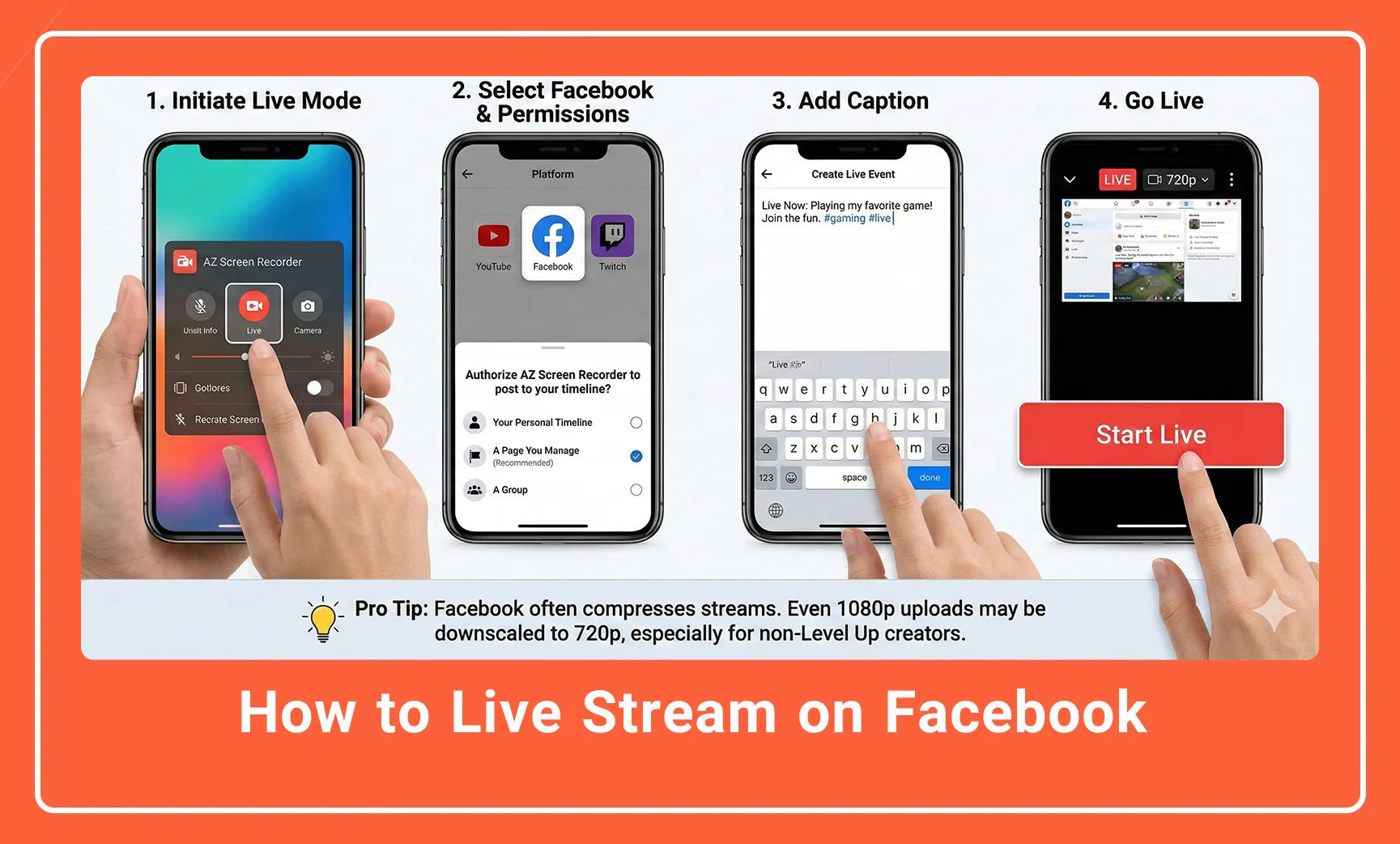
Description: The Facebook login authorization screen within AZ Recorder, asking the user to select between “Public”, “Friends”, or “Only Me” for the stream audience.
Alt Text: Authorizing Facebook permissions for AZ Screen Recorder live streaming.
Advanced Method: Using RTMP (Real-Time Messaging Protocol)
For professional users who need to stream to platforms not natively listed (like Twitch or Vimeo), or to use a custom YouTube ingestion key, the RTMP feature is the gold standard.
-
Locate Stream Key: Go to your platform’s creator dashboard (e.g., YouTube Studio > Go Live). Copy the Server URL and Stream Key.
-
Select RTMP in AZ: In the Live menu, select RTMP.
-
Input Data: Paste the Server URL and Stream Key into the respective fields.
-
Start Stream: This method bypasses the API login and sends raw video data directly to the server.
Warning: Never share your Stream Key. Anyone with this key can broadcast to your channel.
How to How to edit videos in AZ Screen Recorder ?(Built-in Editor Guide)
Troubleshooting Common Streaming Issues
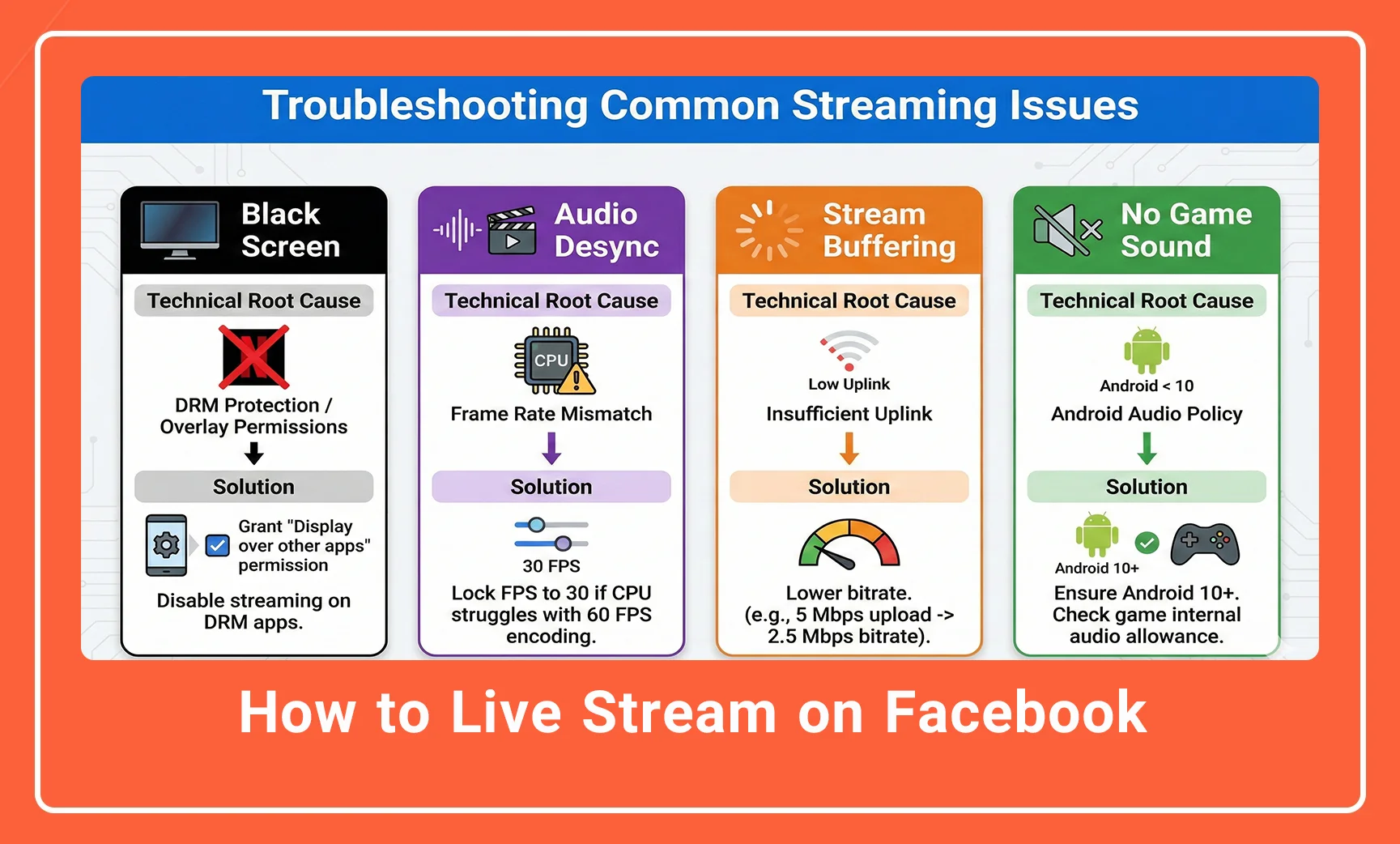
Even with perfect settings, technical anomalies occur. Refer to this data table for rapid troubleshooting.
| Issue | Technical Root Cause | Solution |
| Black Screen | DRM Protection / Overlay Permissions | Disable streaming on apps like Netflix (DRM). Ensure “Display over other apps” permission is granted. |
| Audio Desync | Frame Rate Mismatch | Lock your FPS to 30 FPS in settings if your device CPU is struggling to encode 60 FPS in real-time. |
| Stream Buffering | Insufficient Uplink | Lower the bitrate. If you have 5 Mbps upload, set bitrate to 2.5 Mbps (leave headroom for audio and fluctuations). |
| No Game Sound | Android Audio Policy | Ensure you are on Android 10+. Check if the specific game allows internal audio recording (some voice chat apps block this). |
Description: A visual diagram of a “Signal Flow”. Phone > AZ Recorder (Encoder) > Internet > YouTube Server. A red “X” marks the “Internet” stage to symbolize a connection drop, illustrating buffering issues.
Alt Text: Diagram illustrating signal flow and potential buffering points in mobile live streaming.
Conclusion
AZ Screen Recorder bridges the gap between casual mobile usage and professional content creation. By understanding the relationship between bitrate usage, resolution, and protocol (RTMP vs. API), you can produce broadcast-quality streams directly from your Android device.
Whether you are streaming PUBG Mobile to YouTube or a software tutorial to a Facebook Group, success lies in the pre-configuration. Always run a speed test before going live, and prioritize a stable frame rate over raw resolution to ensure a smooth viewer experience.
Call to Action: Ready to start your first professional stream? Open AZ Screen Recorder now, navigate to the Settings tab, and lock your bitrate to 4 Mbps for a perfect balance of quality and stability.
AZ Screen Recorder for Windows: Best PC Screen Capture
Frequently Asked Questions
1. Can I stream to YouTube if I have fewer than 1,000 subscribers using AZ Screen Recorder?
Yes. Unlike the native YouTube mobile app, AZ Screen Recorder functions as an external encoder, which generally allows streaming via RTMP or API without the strict 1,000 subscriber mobile requirement, though account verification is still needed.
2. Why is there no internal sound in my live stream?
Internal audio recording requires Android 10 or later. If your device is older, AZ Recorder must use the microphone to capture audio from the phone’s speakers, which results in lower quality and background noise.
3. Does AZ Screen Recorder support 1080p 60FPS streaming?
Yes, the app supports up to 1080p at 60FPS. However, streaming at these settings requires a stable internet upload speed of at least 6 Mbps to 10 Mbps and a device with a powerful processor to handle the encoding load.
4. How do I enable the facecam (face overlay) while streaming?
Open the AZ Screen Recorder “Floating Toolbox” or settings menu and toggle the Camera option to ON. You can resize and drag the overlay window to any corner of the screen during your broadcast.
5. What is the difference between “Auto” bitrate and a fixed bitrate?
“Auto” allows the app to adjust quality dynamically based on network fluctuations, which can prevent buffering but causes quality drops. A Fixed Bitrate (e.g., 4 Mbps) forces high quality but requires a very stable internet connection to avoid lag.

AZ Screen Recorder is one of the most popular and powerful free and professional applications for screen recording on Android devices. Due to its ease of use, high output quality, and a rich set of features, this application has become a standard tool for gamers, educational content creators, and general users.